File Manager
File Manager

File Manager

Tools

| AppNest™

Play on PC with BlueStacks or from our cloud

  • Overview
  • How to Download

Page Modified On: November 25, 2026

Run File Manager on PC or Mac

Let BlueStacks turn your PC, Mac, or laptop into the perfect home for File Manager, a fun Tools app from AppNest™.

About the App

File Manager keeps your stuff tidy without making a big fuss about it. This Tools app gives you a clean, fast way to browse folders, manage downloads, open documents, and play media—all in one place. If you like working with a keyboard and mouse, it runs smoothly on BlueStacks as well.

App Features

  • Smooth browsing: Zip through folders with a straightforward layout that makes finding documents, photos, videos, and music feel effortless.
  • Built-in media players: Watch videos and listen to music right inside File Manager—no app switching or extra steps.
  • Archive support: Open and extract RAR and ZIP files, or compress items into new archives to save space and keep things neat.
  • Document viewer: Peek at PDFs and other common formats without leaving the app, perfect for quick checks and sharing.
  • Powerful organizer: Move, copy, rename, and delete in seconds; batch-select items to handle big cleanups fast.
  • Storage analyzer: See what’s eating up space, spot large files, and clear the clutter with smart suggestions.
  • Smart sorting: Sort by size, date, or name, and filter by type so your most important files float to the top.
  • Download hub: Keep tabs on your downloads folder, from big installers to everyday attachments, and file them where they belong.
  • Secure handling: Manage everything locally with controls that respect your privacy while you explore, edit, or remove files.
  • Quick sharing: Send files to your favorite apps or contacts directly from the file browser—no digging around required.

Eager to take your app experience to the next level? Start right away by downloading BlueStacks on your PC or Mac.
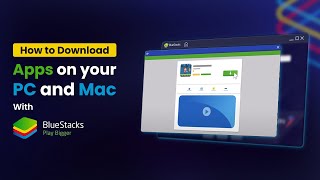

How to Download and Run File Manager on PC or Mac

  • Download and install BlueStacks on your PC or Mac

  • Complete Google sign-in to access the Play Store, or do it later

  • Look for File Manager in the search bar at the top right corner

  • Click to install File Manager from the search results

  • Complete Google sign-in (if you skipped step 2) to install File Manager

  • Click the File Manager icon on the home screen to start playing

video
Watch Video

Minimum System Requirements

With BlueStacks 5, you can get started on a PC that fulfills the following requirements.

  • Operating System

    Microsoft Windows 7 or above, macOS 11 (Big Sur) or above

  • Processor

    Intel, AMD or Apple Silicon Processor

  • RAM

    at least 4GB

  • HDD

    10GB Free Disk Space

Note:

* You must be an Administrator on your PC. Up to date graphics drivers from Microsoft or the chipset vendor.

File Manager - FAQs

  • How to Run File Manager on Windows PC & Mac?

    Run File Manager on your PC or Mac by following these simple steps.

    • Click on ‘Download File Manager on PC’ to download BlueStacks
    • Install it and log-in to Google Play Store
    • Launch and run the app.
  • Why is BlueStacks the fastest and safest platform to play games on PC?

    BlueStacks respects your privacy and is always safe and secure to use. It does not carry any malware, spyware, or any sort of additional software that could harm your PC.

    It is engineered to optimize speed and performance for a seamless gaming experience.

  • What are File Manager PC requirements?

    Minimum requirement to run File Manager on your PC

    • OS: Microsoft Windows 7 and above:
    • Processor: Intel or AMD Processor:
    • RAM: Your PC must have at least 2GB of RAM. (Note that having 2GB or more disk space is not a substitute for RAM):
    • HDD: 5GB Free Disk Space.
    • You must be an Administrator on your PC.